Gohub B2B Portal User Manual & Operations Guide
Comprehensive partner manual for travel agencies and corporate distributors to order eSIM/SIM roaming packages, manage 24/7 automated wallet top-ups, retrieve QR codes instantly, and configure Webhook APIs.
Login & Interface Overview
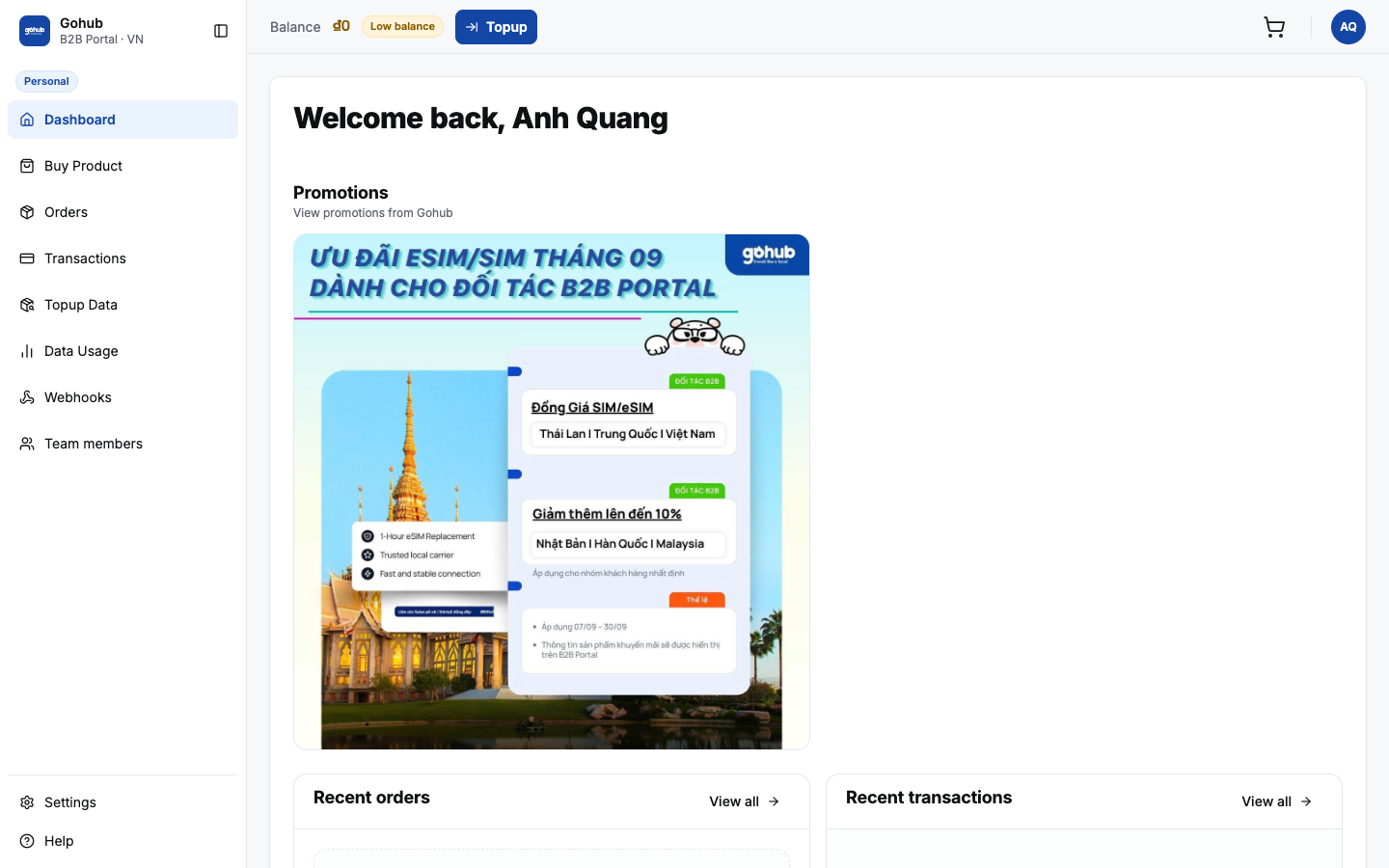
The Gohub B2B Portal is specifically engineered for travel agencies, flight booking partners, and enterprise distributors to order and manage international eSIM/SIM card packages worldwide.
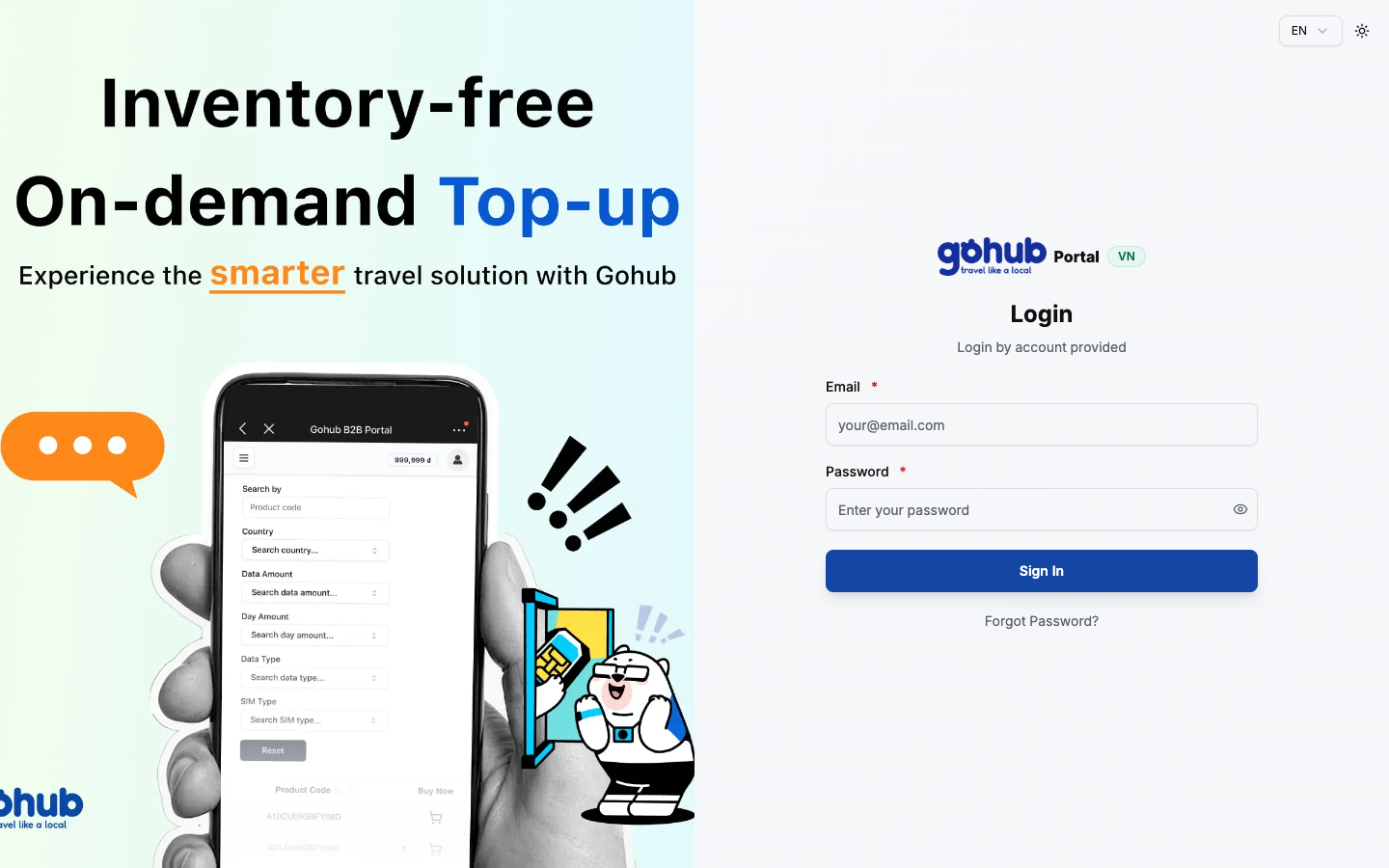
📍 Steps to Sign In:
- Access the official portal login URL:
- For customers buying with VND: https://portal.gohub.vn
- For customers buying with USD: https://portal.gohub.com
- Switch Language: In the upper right corner, click the language flag selector to toggle between 🇺🇸 English (EN) and 🇻🇳 Tiếng Việt (VI).
- Enter your authorized Email Address and Password provided by Gohub.
- Click Sign In to access your partner Dashboard.
Top Header & Wallet Balance Management
The sticky Top Header allows you to monitor your partner finances and trigger quick actions anywhere across the portal:
- 💰 Available Wallet Balance: Displays your spendable balance (VND). Instant “Buy Now” orders are immediately deducted from this balance. Low balance alerts appear if funds are insufficient.
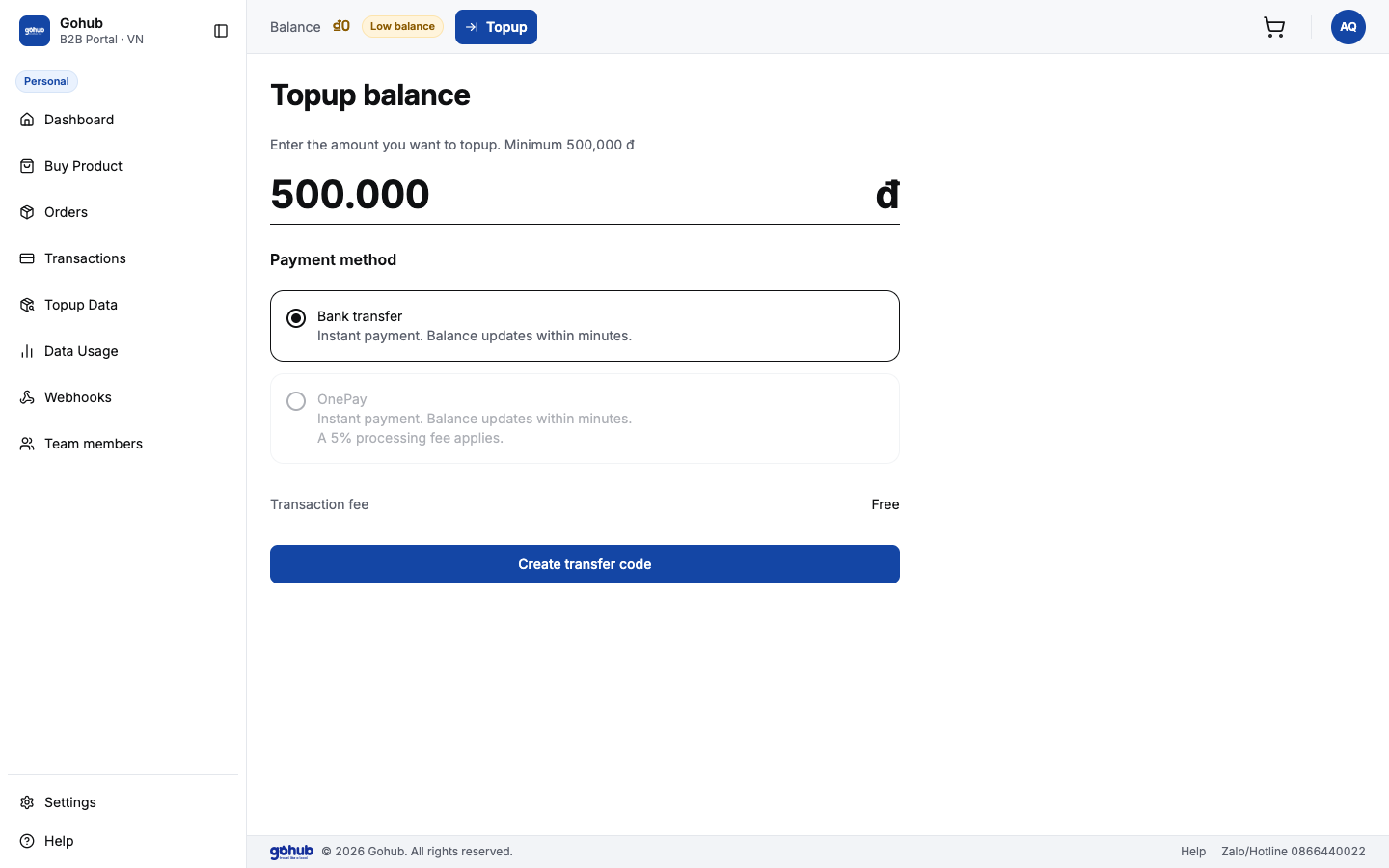
- ⚡ “Top Up” Button: Click to open the 24/7 automated instant deposit gateway via VietQR bank transfer or OnePay.
- 🛍️ Cart & User Profile: Review batched orders in your cart and access account security settings.
Product Search & Ordering eSIM / SIM
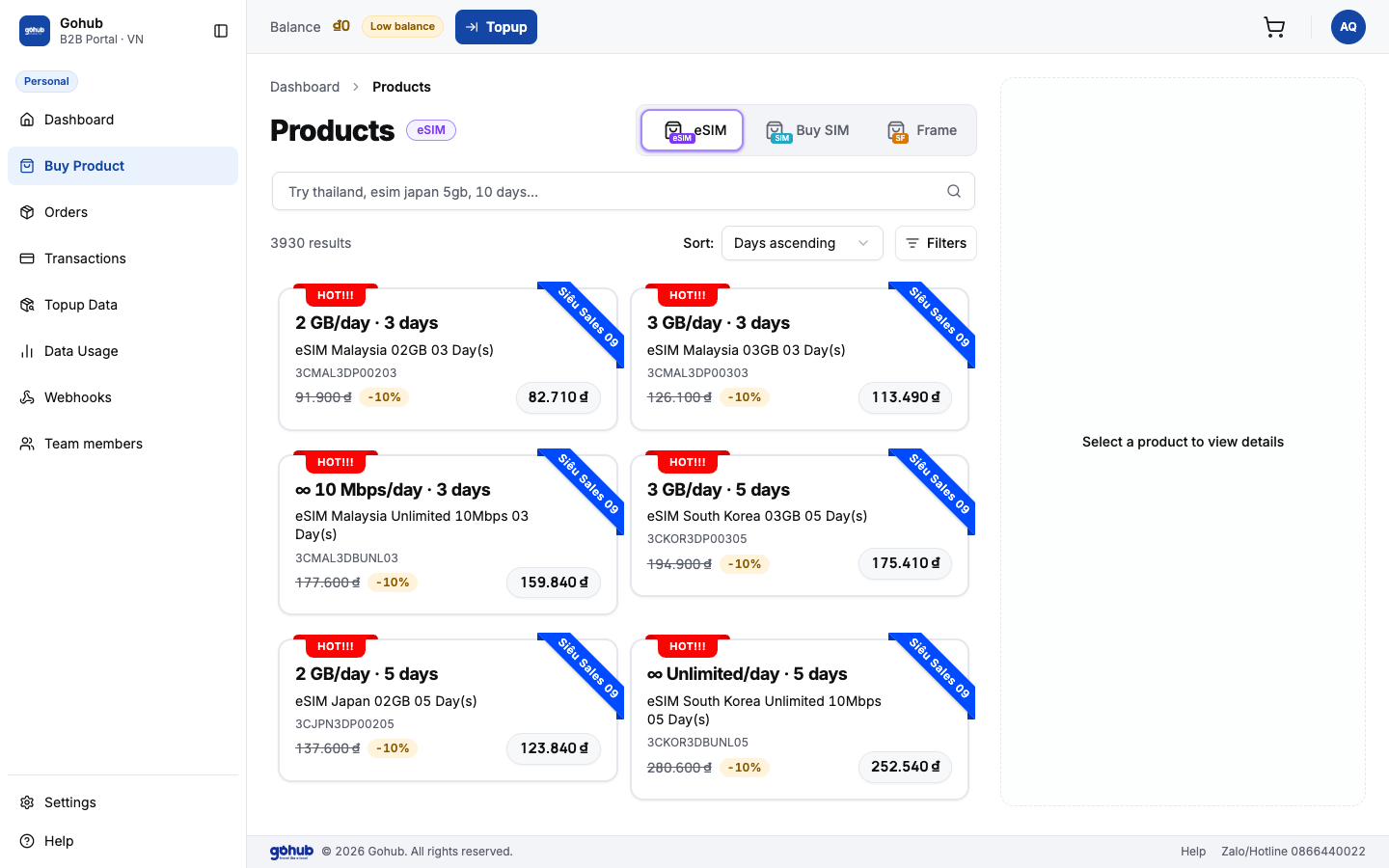
Gohub delivers over 3,930+ data packages covering 200+ countries and global territories.
🔍 How to Find and Filter Plans:
- Navigate to the Products menu on the left sidebar.
- Choose your product category: eSIM (instant QR delivery within 3 seconds) or Physical SIM (postal shipment).
- Type the destination country/region into the search bar (e.g., Japan, South Korea, United States, Europe, Thailand…).
- Use Smart Filters to configure exact duration (1 to 30 days) and daily/total data limits (500MB/day, 1GB/day, 2GB/day, or Unlimited).
- The system presents: Local Carrier Networks, Retail Price, and your dedicated Wholesale Partner Price.
⚡ Instant Purchase vs. Cart Batching:
- Buy Now: Deducts funds directly from your wallet and provisions the eSIM QR code in under 3 seconds!
- Add to Cart: Batch multiple travelers across multiple destinations into a single consolidated checkout.
Wallet Deposit & Payment Methods
Gohub provides two automated deposit gateways to ensure uninterrupted 24/7 order fulfillment:
1. 🏦 VietQR Bank Transfer (Recommended)
- 100% Free of banking transaction fees.
- QR Code automatically embeds exact amount and transfer code.
- Wallet balance is credited automatically within 1 to 3 minutes.
2. 💳 OnePay Payment Gateway (Credit Cards & ATM)
- Supports Visa, MasterCard, JCB, and domestic ATM cards.
- Instant wallet balance updates.
- Gateway processing fees may apply based on banking partner policies.
📍 Step-by-Step Deposit Guide:
- Click the “Top Up” button on the top Header (or go to Wallet → Deposit).
- Enter your desired Deposit Amount (preset
500,000₫or custom). - Select your preferred payment gateway.
- Click “Create Transfer QR” and scan with your mobile banking app.
- Review completed transactions under the Transactions history tab.
Order Management, QR Codes & Excel Export
Manage the complete lifecycle of customer orders and retrieve activation profiles:
📋 How to Retrieve eSIM QR Codes:
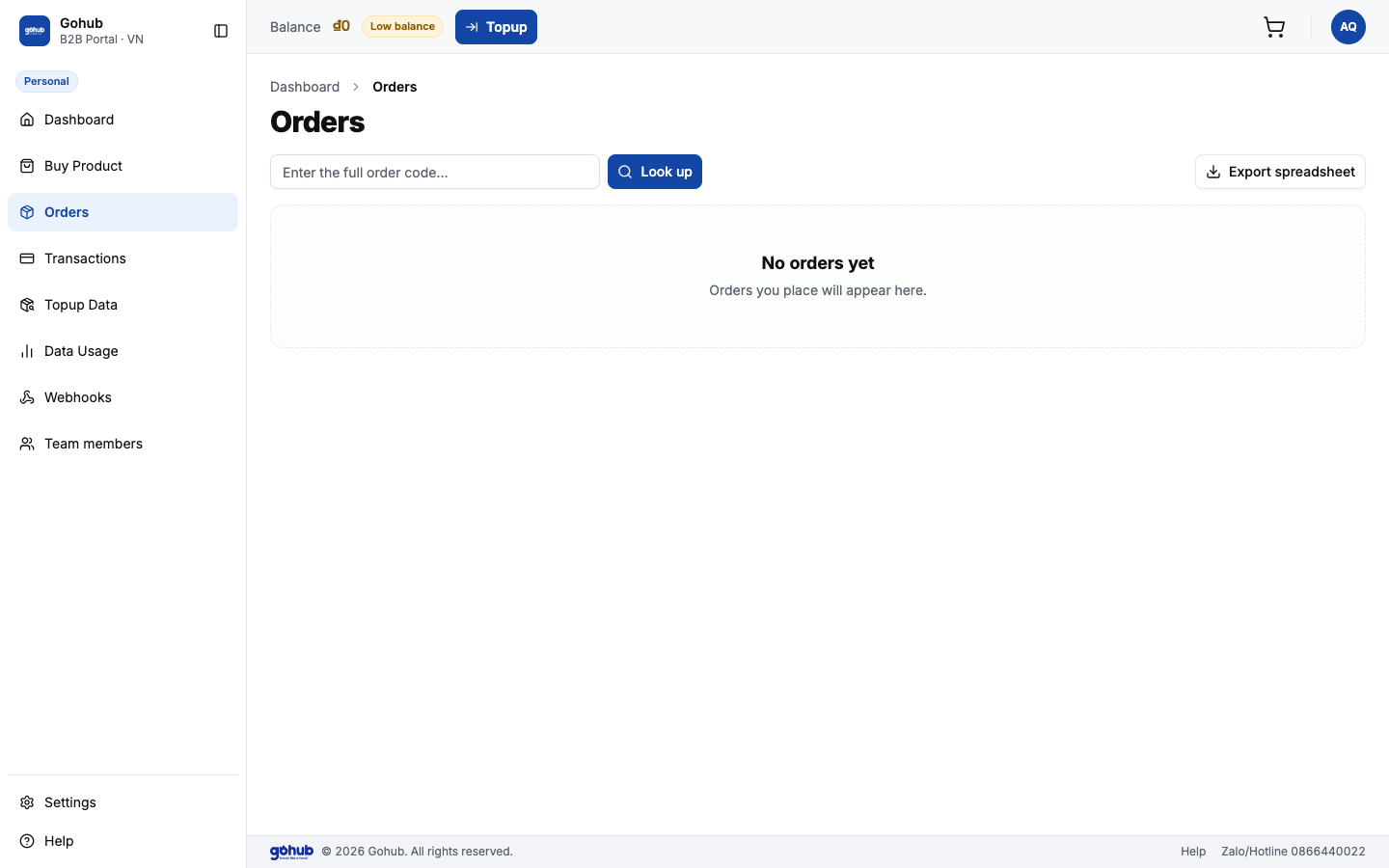
- Navigate to the Orders menu on the left sidebar.
- Search by Order Code or filter by order date (Today, This Week, This Month…).
- Click on the order to retrieve:
- High-resolution eSIM QR Code image to deliver to your customer.
- Manual activation strings (SM-DP+ Address & Activation Code).
- Card ICCID tracking number.
- Click “Export Spreadsheet” (Excel) in the upper right to download accounting reconciliation sheets.
Data Extension (Top-Up for eSIM & Physical SIM)
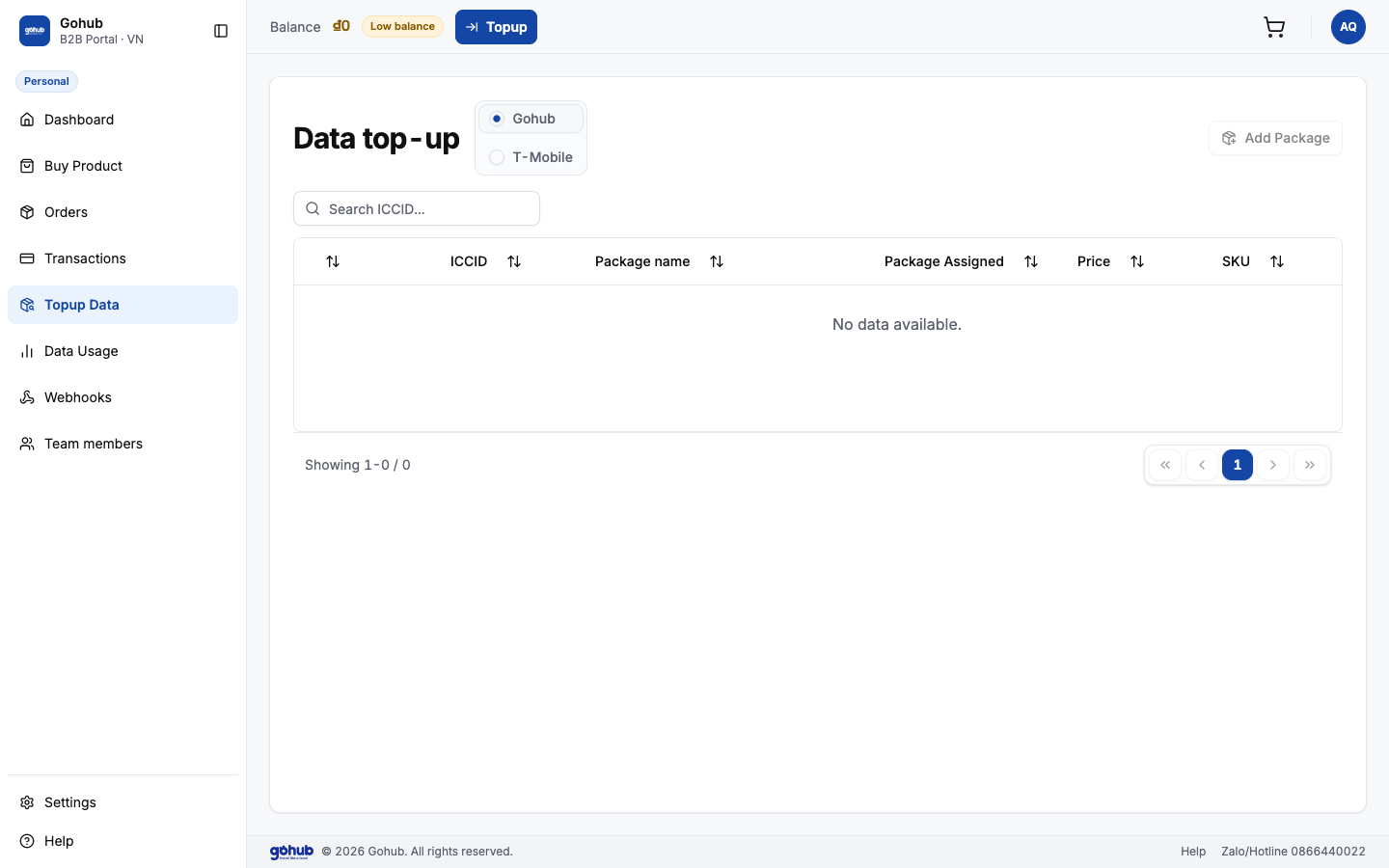
The Top-up Data module supports extending data allowances and validity days for both product categories:
- 📲 Active eSIMs: Customers traveling abroad who exhaust their high-speed data can be topped up without scanning a new QR code.
- 💳 Blank Physical SIM Cards: Partners holding physical blank SIM stock can enter the ICCID to provision data packages on-demand before handing them to customers.
📍 Steps to Top-Up Data:
- Navigate to the Topup Data menu on the left sidebar.
- Select the network carrier: Gohub or T-Mobile.
- Enter the 19–20 digit ICCID of the eSIM or blank SIM into the search box.
- Click “Add Package” → Select the desired top-up package and duration.
- Click Confirm Payment to instantly activate the package on the SIM.
Data Verification & SIM Status Check (ICCID)
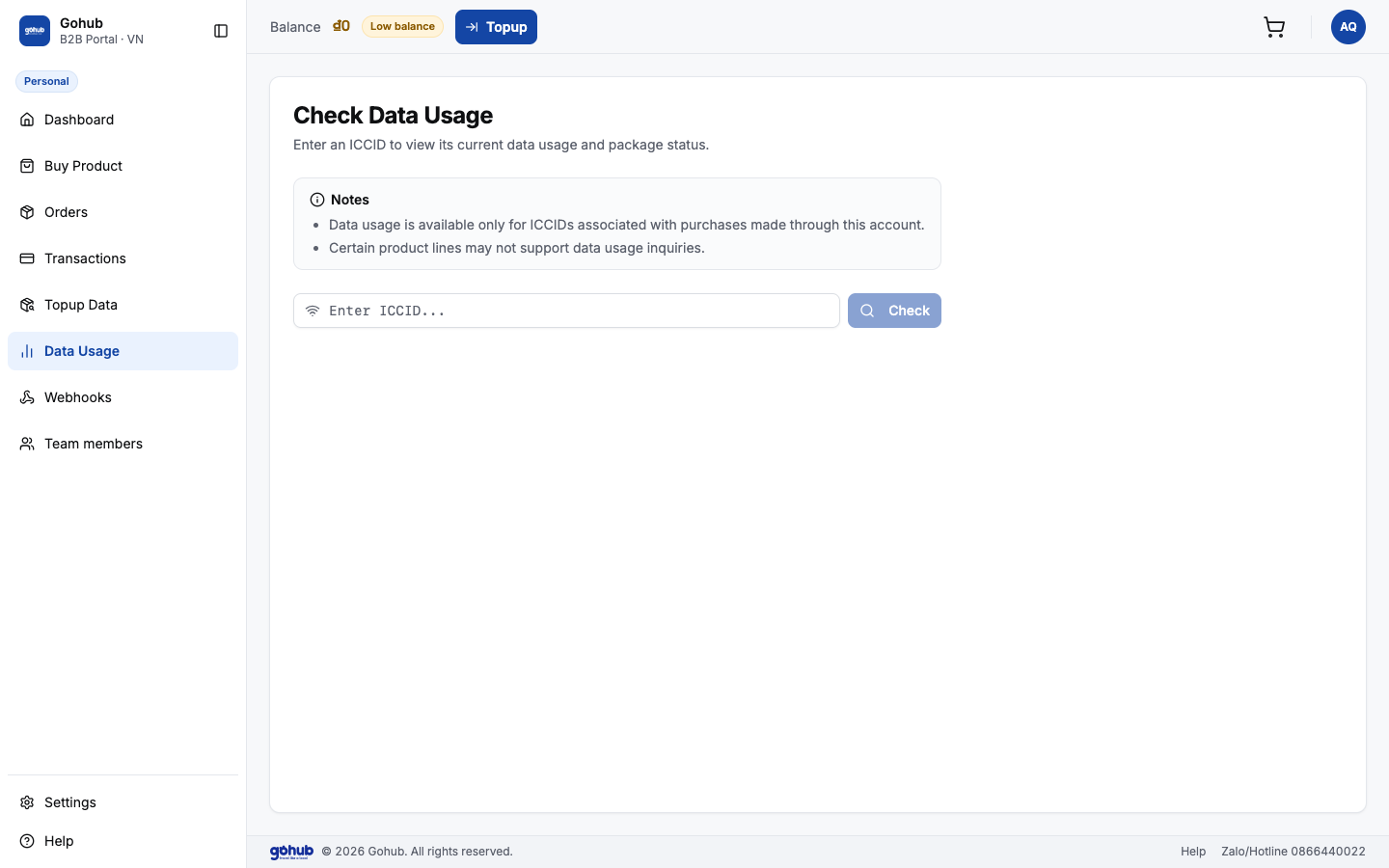
An essential utility for partner support teams to verify SIM profiles in real-time:
🔍 How to Check ICCID Status:
- Navigate to the Data Check menu on the left sidebar.
- Enter the 19–20 digit ICCID number into the query box.
- Click the “Check” button.
- The system returns:
- Assigned Package Name linked to the profile.
- Activation Status: Activated or Unactivated.
- Partner Roaming Carrier in the destination country.
- Plan Validity and precise expiration timestamp.
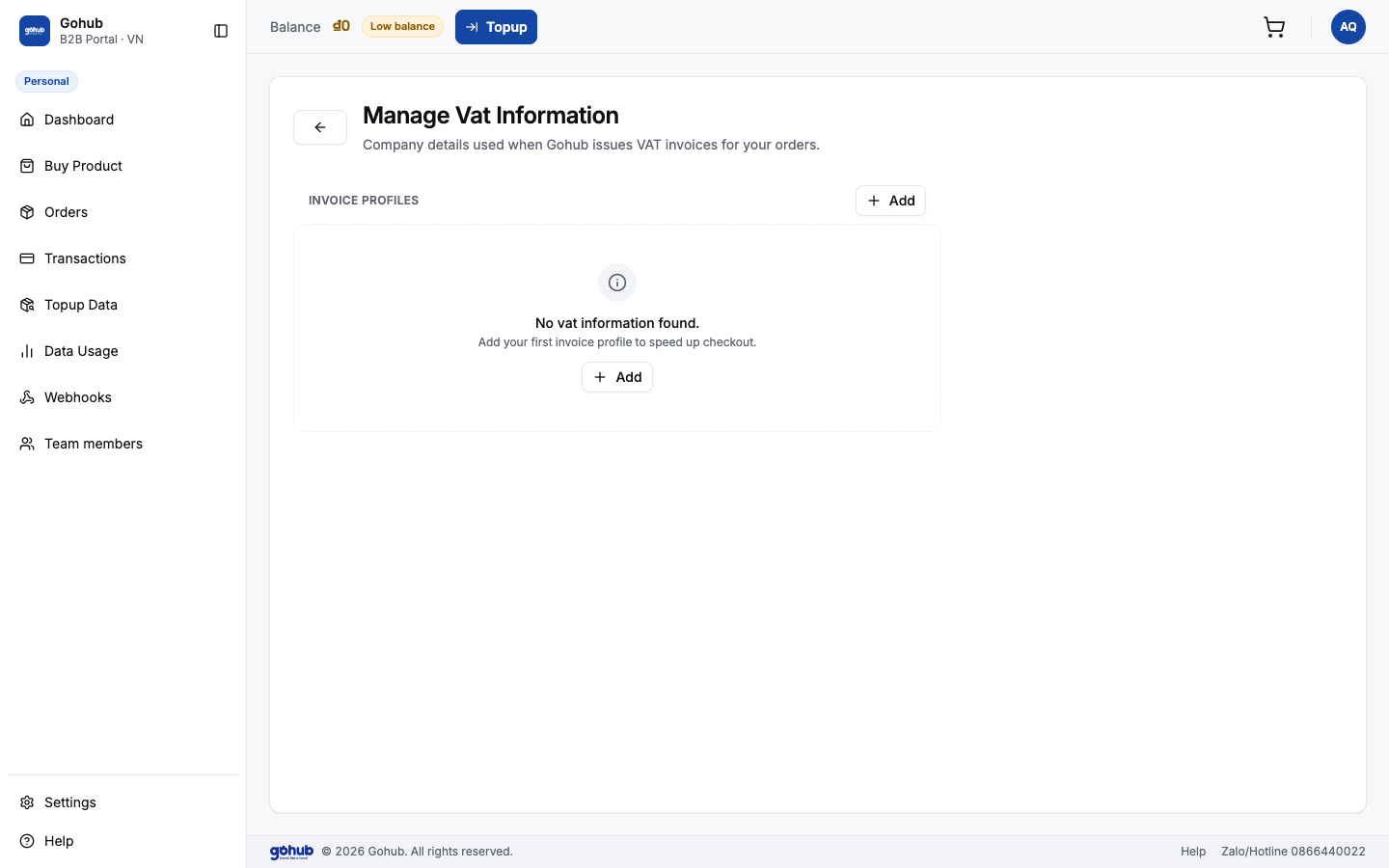
Electronic VAT Invoices Configuration
In accordance with financial compliance rules on Gohub B2B:
1. 🏢 Profile IS001 — Corporate Enterprise (Required):
Declare once for automated periodic e-invoice issuance:
- Company Legal Name (\*): Matching your business registration license.
- Tax Code (\*): Valid 10 or 13-digit tax identification number.
- Registered Legal Address (\*): Official billing address.
- Invoice Recipient Email (\*): Where automated VAT invoice download links are delivered.
2. 👤 Profile IS002 — Individual Partner / Agent:
- Buyer Full Name (\*)
- Personal Tax Code / Citizen ID / Passport No. (\*)
- Billing Email Address
📍 Setup Steps:
- Go to Settings → Select Invoice Information.
- Click “Add” to create a new billing profile.
- Fill in the legal information and click “Add” to save.
Account Security & Password Management
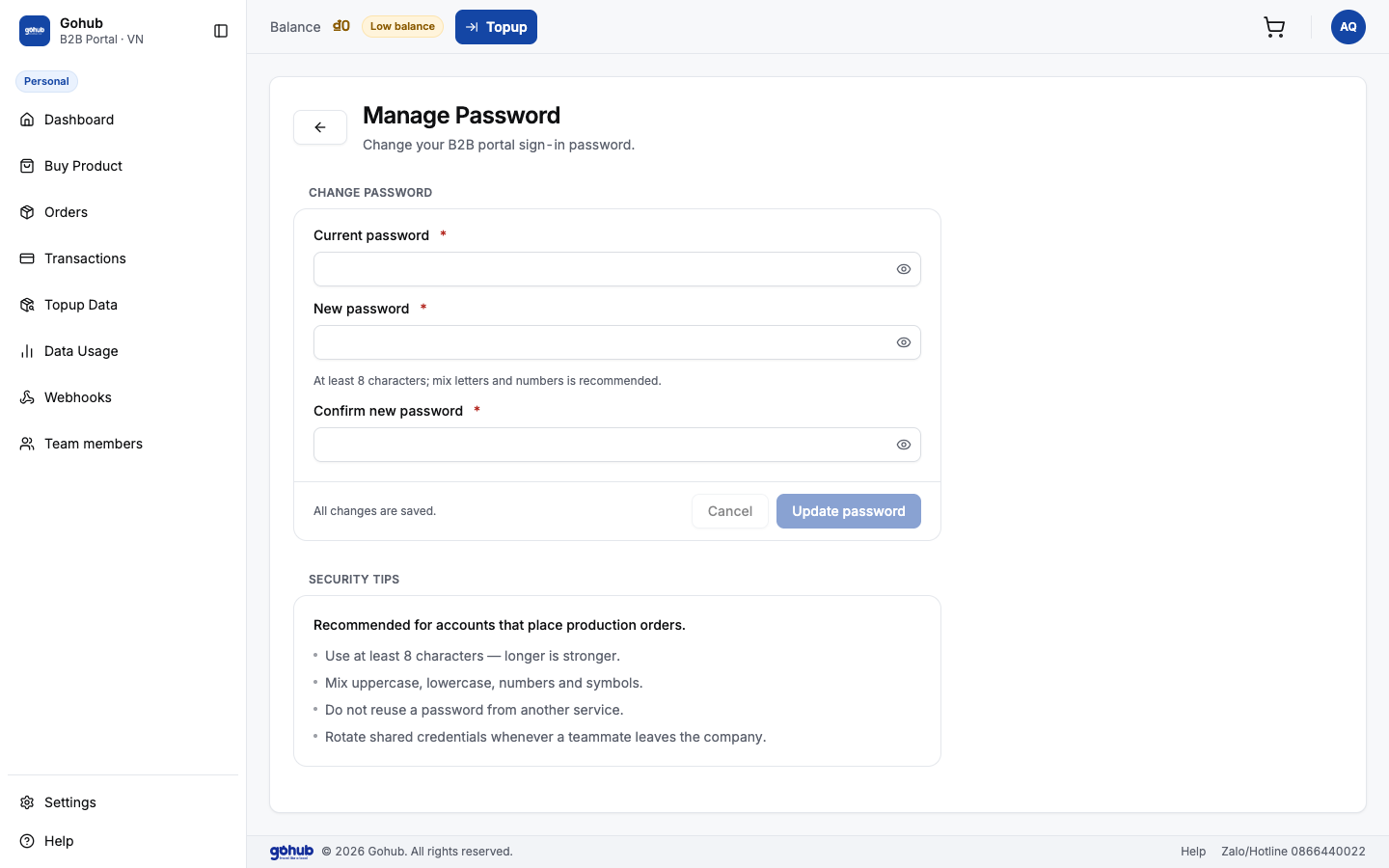
Protect your partner account from unauthorized access:
🔒 4-Step Secure Password Update:
- Navigate to Settings → Select Password (under ACCOUNT & SECURITY).
- Enter your Current Password (\*).
- Enter your New Password (\*) (minimum 8 characters, recommended combination of uppercase, lowercase, and numbers).
- Re-enter your new password in Confirm Password (\*) and click “Update Password”.
⚠️ Security Tip: Do not share master ROOT administrator credentials. Use the Team Members feature to grant dedicated logins for staff members.
Automated Integration with Webhooks & API Keys
For OTA partners and developer teams connecting automated booking engines directly to Gohub:
🔑 1. Retrieving API Keys:
- Go to Settings → Select API Keys.
- Copy your assigned Public Key and Secret Key.
- Keep your
Secret Keyconfidential and store it strictly on your backend server.
🔔 2. Webhook URL Configuration:
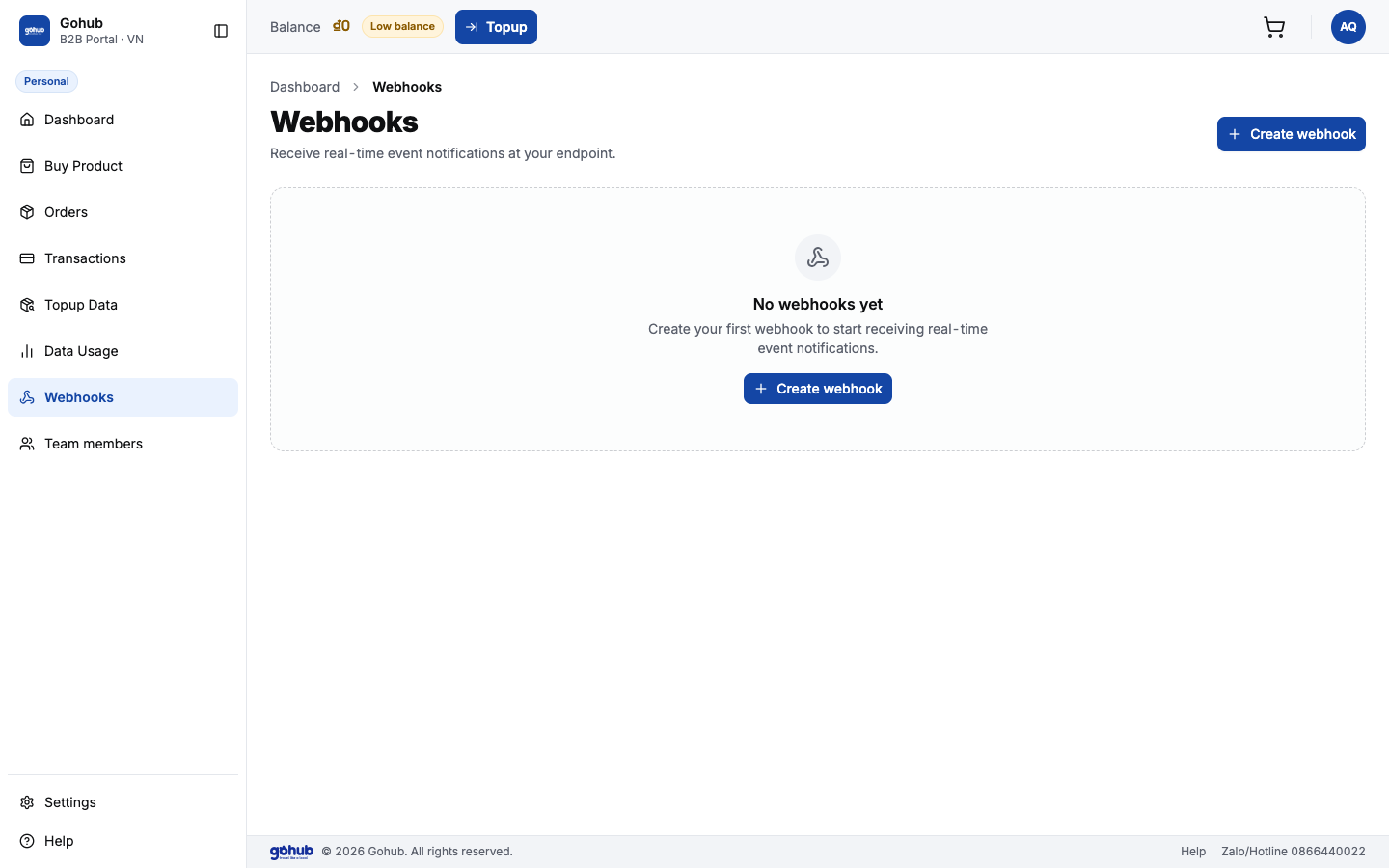
- Go to the Webhook menu on the left sidebar → Click “Create Webhook”.
- Paste your server endpoint URL (e.g.,
https://your-domain.com/api/gohub-webhook). - Select subscribed events:
order.completed,esim.topup.success. - Click Save to enable real-time order callback dispatching.